


Kisi
4.8323.00 Reviews
App Specs
- Version
- Varies with Device
- Updated On
- License
- Free
- Downloads
- 500,000+
- Developer
- Kisi Inc
- Categories
- Business
- Platform
- Android
Screenshots
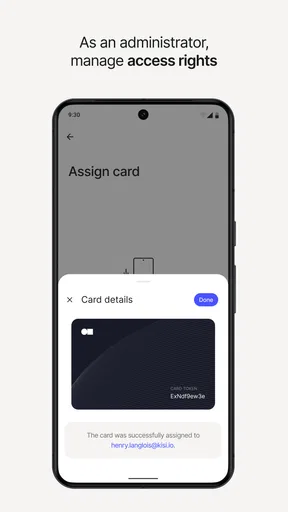
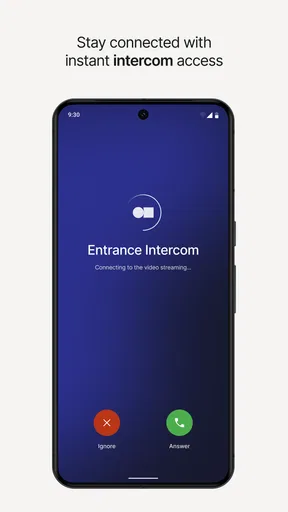
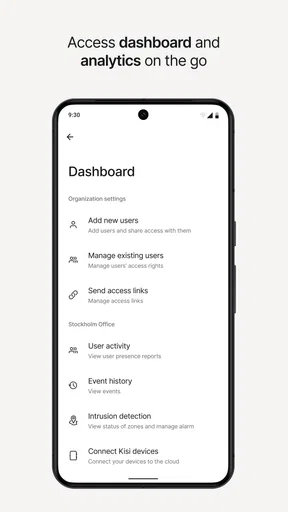

 Analysis by AppCompare
Turning a phone into a work key sounds simple until you are standing outside a door with one hand full of coffee and the other holding your phone. That is where my experience with Kisi becomes most useful: it is an access app for business spaces, designed to replace a physical keycard with a smartphone-based digital key. The idea is convenient, but the real test is not the promise. It is whether the app, your phone, and the building’s access system are all ready at the same moment.
Kisi is a free business app from Kisi Inc, available for users of all ages under its Everyone content rating. It has been around since Jul 23, 2013, and its broad adoption is reflected in more than 500 thousand installs, along with a 4.8 average from roughly 4 thousand ratings. Those figures suggest that the concept is well established, but they do not remove the practical responsibility of checking how your own workplace has configured access.
Where people usually get stuck
The first thing I would clarify is that Kisi is not a universal replacement for every key, badge, or building-entry system. It works when the organization you belong to uses Kisi-controlled access and has assigned you permission. Installing the app by itself does not grant entry. This is the most common misunderstanding because the app looks like a personal utility, while access is actually tied to an organization’s setup.
That distinction matters when someone downloads it before their first day at a shared office. The app may open normally, yet the door may still remain unavailable because the account has not been invited, the correct email address was used, or the administrator has not assigned the relevant space. In that situation, repeatedly tapping the access control is unlikely to solve anything. The useful next step is to confirm with the person managing the office that the account and door permission are connected correctly.
Another point of friction is expecting the phone to behave exactly like a passive card. A card is always in your wallet and usually has one simple action: present it. A phone has a locked screen, battery level, network state, Bluetooth behavior, operating-system settings, and app state. Even when Kisi is working properly, the surrounding phone conditions can affect how quickly the experience feels.
I also found it helpful to separate three questions instead of treating every failure as the same problem. First, can I sign in and see the access assigned to me? Second, can the phone communicate with the entry point? Third, is the building’s reader or door controller responding? Each question points to a different solution, and this simple separation prevents a lot of wasted troubleshooting.
The key practical lesson is that digital access is a chain, not a single button. Your account, the app, the phone, the permission, and the physical access point all have to agree. If one link is missing, the result can look like an app failure even when the app itself is fine.
Worth Reading Before You Choose

EA SPORTS FC Mobile 26 Is a Bigger Football Game, but It Takes Time

Flipboard Shows What News Apps Must Do Beyond the Feed

Switching to Android Auto Means Rethinking Your Driving Routine

Google Calendar Makes a Crowded Week Easier to Manage

Ludo King Makes the Most of the Minutes Between Plans

Baby Panda World Brings Quick Play to Modern Phones, but Its Game Library Feels Busy
Check the account before blaming the door
If you are new to a workplace, I would start with the invitation or sign-in details rather than standing at the entrance trying the same action repeatedly. Use the identity that your organization expects, especially if you have separate personal and work email addresses. An account created with the wrong address can be perfectly valid and still have no useful access attached to it.
It is also worth checking whether you are trying the correct entrance. In a shared office, a user may have access to a main door but not a meeting room, side entrance, storage area, or another floor. Seeing one available location does not automatically mean every Kisi-equipped door belongs to your access group. This is a subtle but important difference between “the system is not working” and “this particular permission does not include that door.”
For visitors, contractors, and people moving between offices, timing can create confusion as well. An administrator may have granted access for a specific purpose or location, while the user assumes it is permanent and building-wide. When access changes during the day, asking the office contact exactly which door and period should work is more productive than reinstalling the app.
Setup checks that prevent avoidable problems
My recommended setup is to complete the account process while you are somewhere comfortable, not for the first time outside a locked entrance. Open the app, sign in, and look for the access areas your organization has made available. This gives you a chance to notice an account issue before it becomes an urgent entry problem.
Keep the app updated through the normal app-store process and keep your phone’s operating system in a supported, current state. I would not treat an update as a guaranteed cure, but outdated software can add uncertainty when an access workflow depends on the app communicating with a physical system. After an update, open the app once before leaving for work so you know it launches and recognizes your account.
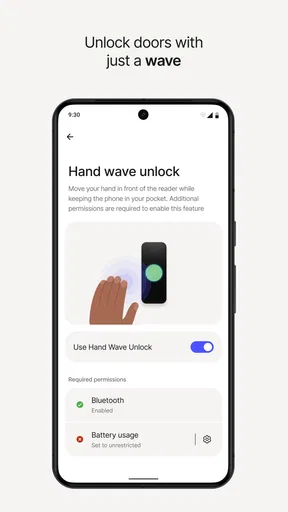
Phone settings deserve a calm review. Make sure the phone is not in an extreme battery-saving mode that restricts the app unexpectedly, and check that the app is allowed to operate in the way your organization’s access instructions require. If your phone has aggressive background restrictions, those can make a quick entry action feel unreliable even though the account is correctly configured.
I would also avoid testing with a nearly empty battery. This sounds obvious, but digital keys are different from cards: a dead phone cannot present anything. Carrying a small charger or keeping a backup entry method available is sensible for employees who need access outside normal staffed hours. That is not a criticism unique to Kisi; it is the unavoidable trade-off of replacing a physical object with a powered device.
Before relying on the app for an important meeting, try it at a low-pressure time. Notice whether you need to open the app, whether the door responds promptly, and whether the reader is positioned in a particular place. The goal is not to memorize a complicated routine. It is to learn the interaction at your own building, because the physical reader and door hardware influence the experience just as much as the software.
What I would verify on the first day
- Identity: confirm that the signed-in account matches the address used by your organization.
- Permission: check that the expected entrance or room appears in your available access.
- Phone readiness: avoid a critically low battery and review restrictive power settings.
- Physical approach: learn where the reader is and how close the phone needs to be during a normal attempt.
- Backup plan: know whom to contact if the door does not respond, especially outside reception hours.
These checks are deliberately ordinary. I would be suspicious of any review that promises a single hidden setting will fix every entry problem. Kisi is part of a managed access environment, so the best preparation combines sensible phone maintenance with clear communication from the organization controlling the doors.
Recovering the workflow when entry fails
When an attempt does not work, I recommend pausing instead of rapidly repeating it. Confirm that the app is open and that you are signed in to the intended account. Then move through the same approach you used during a successful test. A rushed sequence can make it difficult to tell whether the issue was the phone position, the selected access point, the account, or the reader.
If the app does not show the expected door, treat that as an account or permission question first. Contact the workplace administrator and describe the exact entrance you are trying to use. “The app does not work” is less useful than “my account opens the main entrance but not the side door” or “the expected location is not visible.” Specific wording helps the person responsible for access check the right assignment.
If the door is visible but the physical reader does not react, check the phone basics before assuming your permission vanished. Make sure the phone is awake, the app is responsive, and restrictive battery settings are not interfering. If you have a second phone or an alternative approved entry method, comparing them can help isolate whether the issue follows the account or stays with the device.
Force-closing and reopening the app can be a reasonable recovery step when the interface has become unresponsive. I would use that before deleting the app, because reinstalling creates extra work and may not address an administrator-side permission problem. Reinstallation should be a later option, not the first reaction to one failed attempt.
It is also useful to record the context of a failure: the door, approximate time, phone state, and whether the app displayed an error or simply produced no response. This small habit turns a vague complaint into actionable information. For a workplace administrator, the difference between a missing permission and a reader that stopped responding is significant.
- Move to a safe place and confirm the phone is unlocked and responsive.
- Open the app again and verify the signed-in identity and visible access.
- Retry once using the same position and process that worked during setup.
- Ask the organization’s access contact to verify the door assignment if the location is missing.
- Keep an approved alternative entry method available if the door remains unavailable.
One non-obvious trade-off is that a digital key makes access easier to manage centrally, but it can also make the user dependent on the organization’s account administration. With a physical card, a replacement may be issued at reception. With Kisi, a permission change may need to be made in the access system before the app can reflect it. That is efficient for businesses, but it means the right support contact matters.
When the app may not be the cause
A door can fail to open for reasons that have nothing to do with the application. The reader may be offline, the door hardware may be locked for a building-wide reason, or the organization may have temporarily changed access rules. From the user’s perspective, all of these situations can look like a failed tap, but reinstalling the app cannot repair a physical or administrative problem.
Look for clues in the pattern. If several colleagues cannot enter through the same door, the issue is probably broader than your phone. If your app shows the correct access but the reader gives no response, the physical access point deserves attention. If another authorized person can enter while you cannot, your account, device, or individual permission becomes more likely.
This is where Kisi’s business focus becomes clear. It is not simply a personal shortcut for opening doors; it belongs to an access-management arrangement. The organization decides who should enter which areas, and the physical installation has to be maintained. I appreciate that model for offices because it can reduce the need to hand out and collect cards, but users should know that support may sit with an office manager or building administrator rather than with the app alone.
There is a privacy and control trade-off as well. A physical card is easy to understand but limited in what it can communicate. A smartphone-based key is more flexible for managed access, yet it ties entry to a personal device and account. People who keep work and personal life strictly separate may prefer a conventional badge, especially if they do not want workplace access connected to the phone they use everywhere else.
Kisi may also be the wrong choice for a small location that only needs one or two simple keys and has no reason to manage changing permissions digitally. A traditional key or basic card system can be less dependent on batteries, apps, and account invitations. On the other hand, for a growing office with rotating staff, shared rooms, or multiple controlled entrances, the digital approach can be much easier to administer than manually tracking physical cards.
Everyday scenarios where the difference matters
Imagine arriving at a coworking office before the front desk opens. With a physical card, you would present the card and continue. With Kisi, you want to have completed sign-in beforehand, know that your account includes the entrance, and avoid discovering a phone setting problem at the door. The convenience is real when everything is ready, but the preparation is part of the experience.
Now consider a team member who changes departments and no longer needs access to a storage room. A centrally managed digital key can be more practical than finding the old card and hoping it is returned. The benefit is not only speed at the door; it is the ability to align access with a changing workplace. That is a stronger use case than simply saying the phone replaces a badge.
For a meeting-room-heavy office, the important question is not whether the app is attractive. It is whether the access structure matches how people actually move through the building. If permissions are organized clearly, the app can reduce badge clutter. If users frequently need temporary or unusual access and nobody knows who manages it, the same system can feel frustrating because the phone cannot compensate for unclear administration.
For people who regularly forget their phone, work in environments where phones are restricted, or cannot keep the device charged, a physical alternative may be more dependable. I would also hesitate to recommend a phone-only access routine to someone whose job requires immediate entry during emergencies unless the organization provides a reliable backup procedure.
My practical verdict on Kisi
After looking at the complete workflow rather than just the entry button, I see Kisi as a sensible business access app for organizations that want smartphone-based keys and centralized control. Its free price makes trying the app straightforward for users, while the real value depends on how thoughtfully the workplace has configured permissions, doors, and support.
I would recommend it to employees, members, and authorized visitors in offices already using Kisi, especially when several doors or changing access groups make physical cards inconvenient. The strongest benefit is not merely leaving your keycard at home. It is having access tied to a managed account that can fit a modern workplace more naturally than a pile of badges.
I would not recommend relying on it without preparation. Before your first important entry, sign in, confirm the expected location appears, test the phone under normal conditions, and identify the person who can correct access. Keep a backup plan if your work depends on getting inside at a particular time. Those steps address the most realistic friction without pretending that every problem can be solved from the handset.
The high average rating and large install base make Kisi look reassuring, and my overall impression is positive, but the app should be judged as one part of a complete access system. When the account, phone, reader, and permissions are aligned, it can make everyday entry feel quick and pleasantly uneventful. When they are not, the best troubleshooting move is often to ask the right administrator the right specific question.
In short, I would choose Kisi when a business needs flexible digital access and is prepared to manage it properly. I would choose a conventional card or key when independence from phone battery, software, and account administration matters more. That boundary is important: Kisi is convenient because it connects access to your phone, and that same connection is the reason a little setup discipline makes such a big difference.
For a free app in the Business category, developed by Kisi Inc and rated for Everyone, it delivers a focused purpose rather than a crowded collection of tools. If your organization supports it, I think it is worth installing and testing before you need it. Just treat the first successful entry as a setup milestone, not as proof that every future door and situation will behave identically.
Pros
- Simple mobile access control for doors and shared spaces.
- Supports touchless entry with compatible credentials and devices.
- Useful activity logs help administrators monitor access events.
- Cloud-based management can simplify access changes for teams.
- Can reduce the need for physical keys and replacement cards.
Cons
- Requires compatible Kisi hardware to unlock doors.
- Some features depend on an active internet or Bluetooth connection.
- Initial setup may be complex for small organizations.
- Access permissions can be confusing when many users are managed.
- Availability and features may vary by building and administrator settings.
FAQs for Kisi
What is Kisi and what can I use it for?
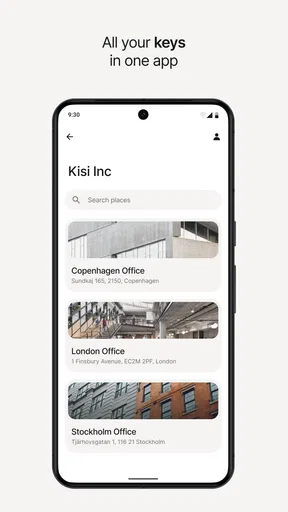
Kisi is a mobile access-control app that lets authorized users unlock compatible doors, gates, and other secured entry points with a smartphone. It is commonly used in offices, coworking spaces, residential buildings, schools, and shared facilities. After signing in and receiving access from an administrator, you can view available locations and use the app instead of a traditional keycard or physical key.
How do I unlock a door with the Kisi app?
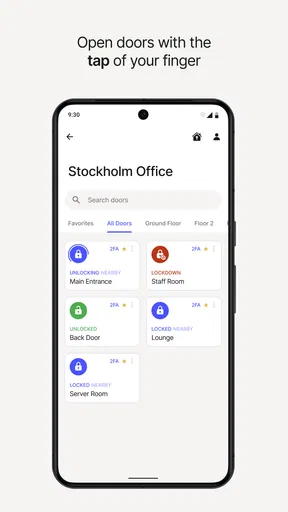
To unlock a door, install Kisi, sign in with the account connected to your organization, and make sure Bluetooth and the required location permissions are enabled. Stand near an authorized Kisi reader, select the relevant access point in the app, and follow the unlock prompt. The door will open only if your account has valid permission and the access schedule allows entry.
Does Kisi work without an internet connection?
Kisi may require an internet connection for signing in, receiving updated permissions, and communicating with certain access systems, although the exact offline behavior depends on the organization’s hardware and configuration. Bluetooth is also commonly needed when interacting with a nearby reader. If access is important, check your connection, keep the app updated, and ask the facility administrator about backup entry methods.
Is Kisi secure and what permissions does it require?
Kisi is designed for managed, permission-based access rather than unrestricted door unlocking. Security depends on account protection, administrator settings, device security, and the building’s Kisi hardware. The app may request Bluetooth, location, notifications, and camera or biometric permissions depending on the features enabled. Review these requests carefully and use a strong password or supported sign-in protection.
What should I do if Kisi will not unlock the door?
If Kisi does not unlock a door, first confirm that you are signed into the correct account and that Bluetooth, location services, and app permissions are enabled. Move closer to the reader, restart Bluetooth, and check whether the app or phone requires an update. Also verify that your access has not expired or been restricted. If the problem continues, contact the building or workplace administrator.


